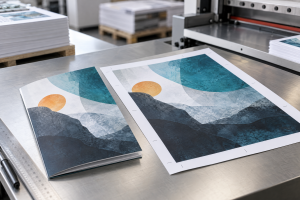
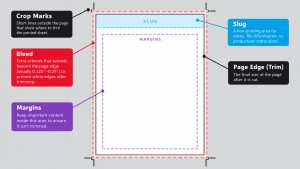
To add bleed in Adobe, first confirm your finished page size and your print provider’s required bleed. Then extend images and background colors beyond the trim edge and export a PDF that includes the extra artwork. Crop marks are separate cutting guides and should be added only if your printer requests them.
If you already have a PDF and need to add bleed in Acrobat Pro, check whether extra artwork exists beyond the trim. Acrobat can change page boxes and add printer marks, but those tools cannot create missing image content.
This guide explains how to prepare bleed and crop marks in Acrobat Pro, InDesign, Illustrator and Photoshop, then check the resulting file before sending it to print.
For a full explanation of the printing concepts, read Ironmark’s guide to bleed and crop marks.
Before You Add Bleed
Confirm four details with your print provider before editing your file.
- The finished trim dimensions of the design.
- The amount of bleed required beyond each edge.
- Whether the printer wants crop marks included in your PDF.
- The preferred PDF preset, color profile and any special finishing requirements.
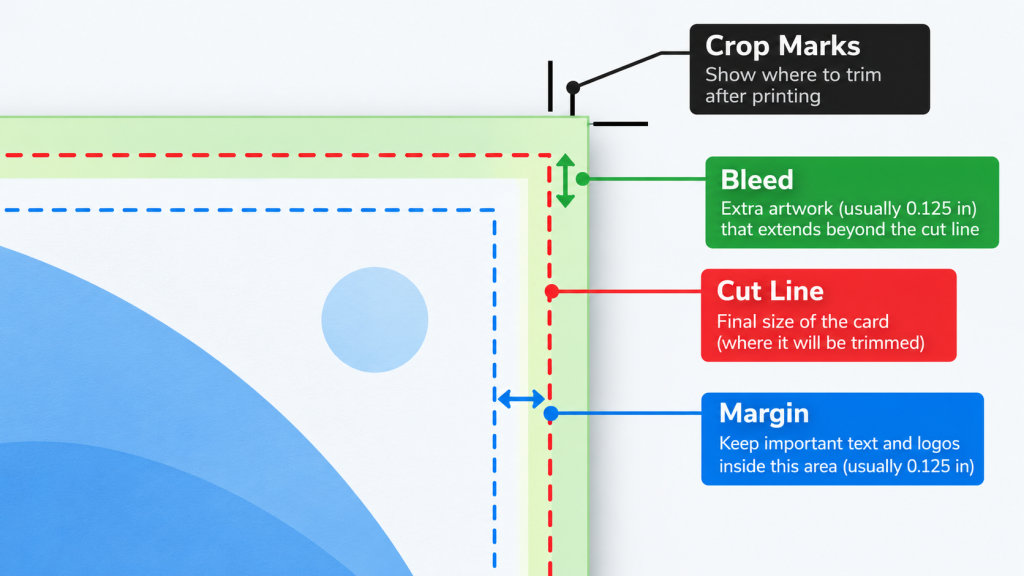
A bleed allowance of 0.125 inch on each side is common for many commercial print projects, but it is not the correct specification for every product.
[IRONMARK SME VALIDATION REQUIRED. Confirm whether 0.125 inch is appropriate for Ironmark’s standard products, which products need other amounts, and when customer supplied crop marks are required.]
Remember that three separate actions may be needed. Setting a bleed value establishes an intended area, extending artwork fills that area with real content, and adding crop marks places visible guides for the cut.
How to Add Bleed to a PDF in Acrobat Pro
Acrobat Pro is useful for inspecting and adjusting a PDF that is already exported. It can show or change print production page boxes and add printer marks. Whether it can help you deliver a usable full bleed PDF depends on what artwork the file actually contains.
Step 1 Check Whether the PDF Already Contains Bleed Artwork
Open the PDF in Acrobat Pro and inspect the edges of the artwork at a useful zoom level. A design intended to print to the edge should contain background or image content extending beyond the finished trim boundary.
If the file contains only the finished artwork, adding more page space or marks will not generate the missing portions of a photograph or background. The safest next step is generally to edit the original document and export it again.
Step 2 Inspect or Adjust the PDF Page Boxes
- Open the PDF in Acrobat Pro.
- Choose All tools > Organize pages > Set page boxes.
- Inspect the displayed boundaries, including the TrimBox and BleedBox when available.
- Check that the intended trim boundary matches the finished size and the bleed boundary represents the required outer area.
- If you are authorized to change the file and understand the required dimensions, make the appropriate page box adjustment and review the preview before accepting it.
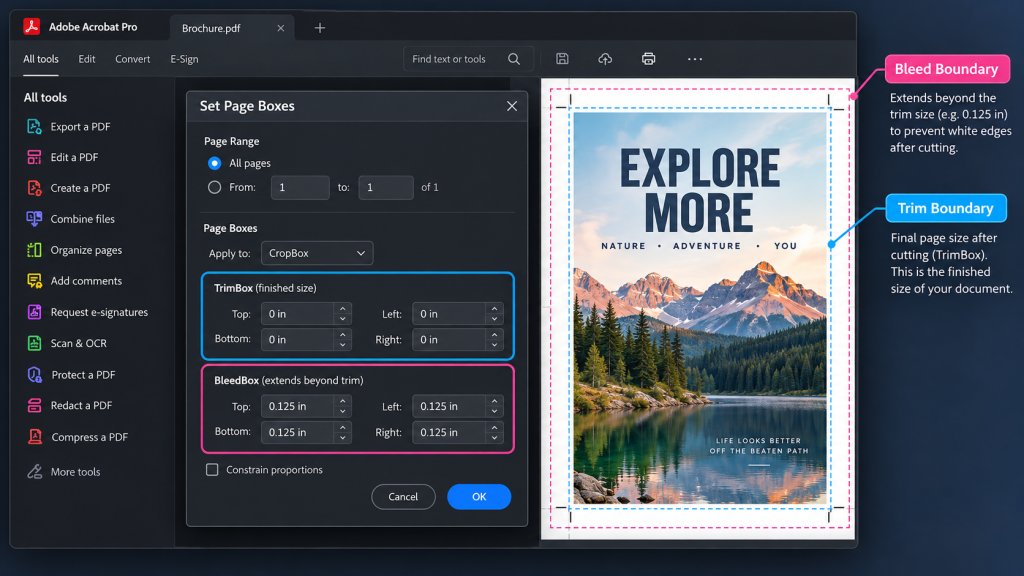
The TrimBox defines the finished trim boundary. The BleedBox describes the area intended to accommodate bleed. Defining a BleedBox does not create new artwork.
Do not change page boxes simply to make a PDF look as though it has bleed. Confirm that the content really extends into the intended bleed region.
Step 3 Add Crop Marks Only if Your Printer Requests Them
- Choose All tools > Use print production > Add printer marks.
- Select the pages to which marks should apply.
- Choose the requested printer marks and review the settings.
- Inspect the results to confirm that the marks are outside the finished design and do not overlap existing marks.
- Save a separate reviewed copy when the file is correct.
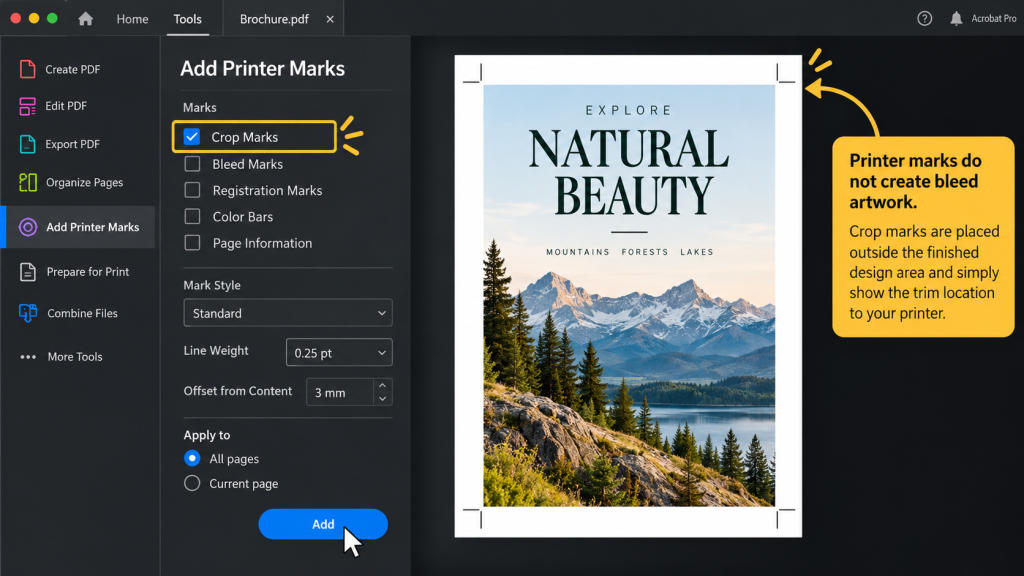
Adding printer marks is not the same as adding bleed. If crop marks were already embedded in the PDF, adding another set can create duplicate or conflicting marks.
For the official tool explanation, see Adobe guidance on Acrobat printer marks.
What if the PDF Has No Bleed Artwork
Go back to the editable file in InDesign, Illustrator or another design application when possible. Extend the design into the required bleed area and create a new PDF.
If the source file is unavailable, ask the print provider whether the design can be corrected safely. Avoid assuming that adding marks or expanding a page box solves the artwork problem.
How to Add Bleed in Adobe InDesign
InDesign supports dedicated bleed settings for both new and existing documents and can include that area when exporting a print PDF.
Step 1 Set Bleed in a New Document
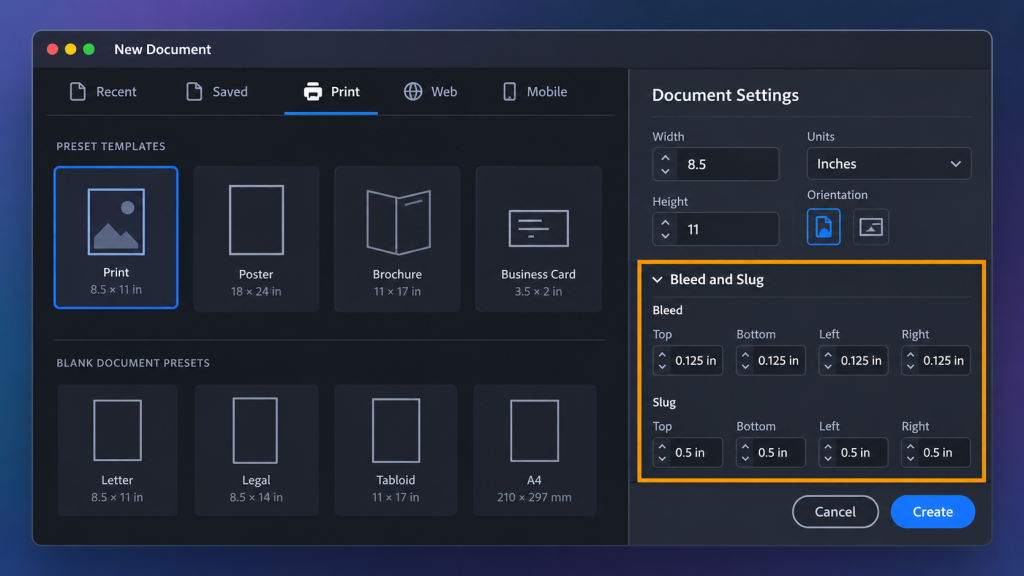
- Choose File > New > Document.
- Select the Print category or another appropriate document preset.
- Set the finished page dimensions to match the required trim size.
- Expand the Bleed and Slug options and enter the amount of bleed specified by your printer.
- Create the document.
For an existing file, choose File > Document Setup and update the bleed settings there.
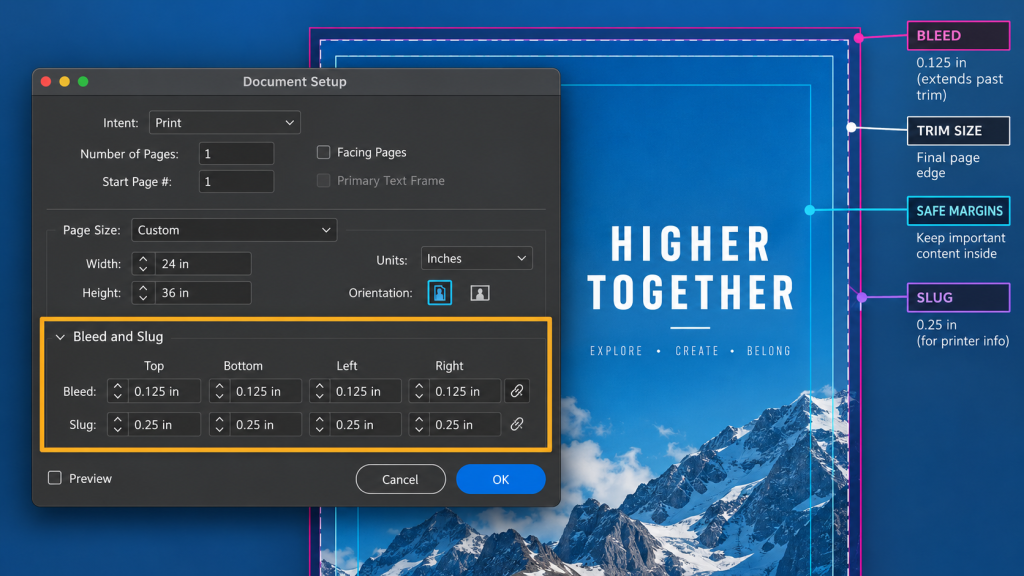
Step 2 Extend the Artwork to the Bleed Guide
The normal page edge identifies the intended finished trim. The red guide outside that edge identifies the outer bleed boundary when the default guide colors are used.
Extend images, backgrounds and other elements that must run to the finished edge until they reach the bleed guide. Keep important text, logos and other essential elements inside the appropriate safe area.
A bleed setting without actual artwork extension will not prevent an unwanted white edge.
Step 3 Export a PDF Including Bleed
- Choose File > Export.
- Select Adobe PDF (Print) as the format and continue to the PDF export dialog.
- Choose the PDF preset requested by your print provider.
- Open the Marks and Bleeds panel.
- Select Use Document Bleed Settings so the file includes the bleed defined in the document.
- Add Crop Marks only if the print provider has asked for them.
- Export the PDF and inspect the result.
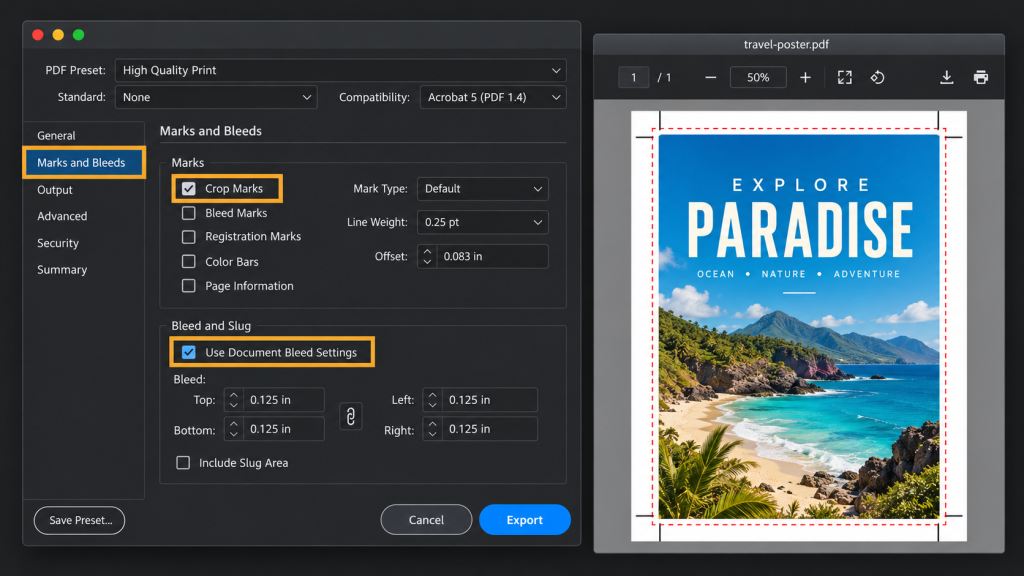
The file should show the correct artwork extension, not merely a bleed setting. Avoid automatically selecting all printer marks without confirmation.
For additional detail, see Adobe guidance on print bleed in InDesign.
How to Add Bleed in Adobe Illustrator
Illustrator supports bleed values around artboards, and its Adobe PDF options allow bleed and printer marks to be included in the output.
Step 1 Set the Document Bleed
- For a new file, choose File > New and enter the finished artboard dimensions.
- Enter the required bleed in the document preset details and create the file.
- For an existing file, choose File > Document Setup and review or enter the bleed values.
- Confirm that the bleed boundary appears outside the artboard.
Your artboard defines the finished piece. The bleed region is extra space outside the artboard, not part of the final trimmed product.
Step 2 Extend Backgrounds Beyond the Artboard
Move or extend each image, color block or illustration that should reach the finished edge so it covers the required bleed area. Ensure that important text or logos are not positioned where they may be cut off.
Setting larger bleed values without changing the actual artwork does not manufacture additional image content.
Step 3 Save an Adobe PDF with Bleed
- Choose File > Save As or File > Save a Copy, depending on your Illustrator version and workflow.
- Choose Adobe PDF as the format and continue to the Adobe PDF options dialog.
- Open Marks and Bleeds.
- Select Use Document Bleed Settings or enter the printer’s confirmed bleed values.
- Include Trim Marks only when the printer specifically requests them.
- Save the PDF and inspect the output for correct edges and marks.
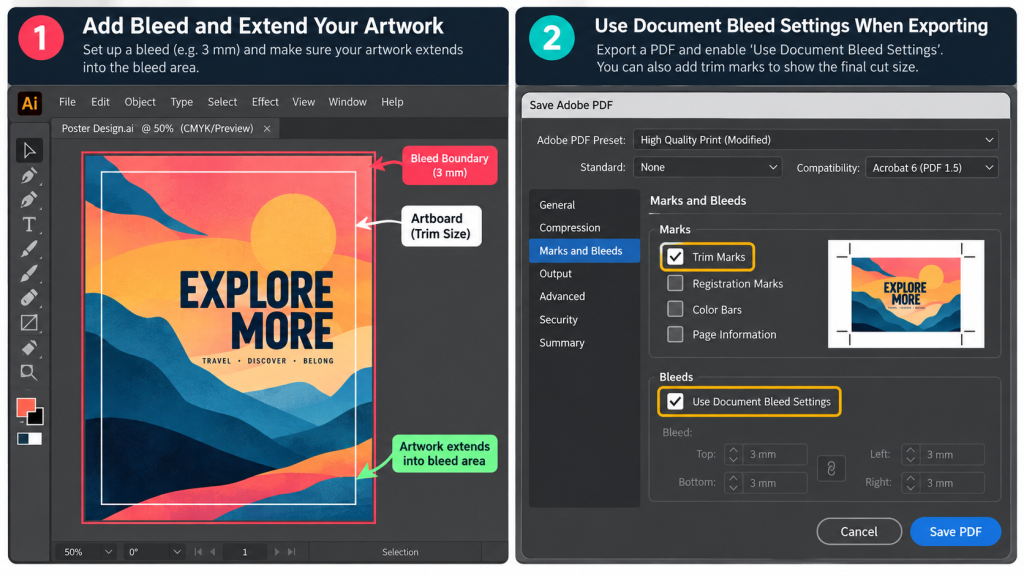
Adobe documents these options in its Illustrator PDF settings guide.
Can You Add Bleed in Adobe Photoshop
Photoshop does not provide the same document bleed workflow as InDesign and Illustrator. You can expand the canvas and extend or reconstruct artwork manually, and Photoshop also offers printing output options that include marks.
An expanded canvas is not the same thing as artwork with sufficient bleed. Blank pixels, transparent space or a plain extension color cannot replace missing details in a photograph.
Step 1 Confirm the Finished Size and Required Extra Area
Ask your printer for the required dimensions and bleed. Check the image size and resolution before enlarging the design area, since expanding or resampling an image can affect the final quality.
Step 2 Expand the Canvas When Appropriate
- Save a working copy of the Photoshop file.
- Choose Image > Canvas Size.
- If you are adding space to every side, use the centered anchor and enter the required overall canvas dimensions or use Relative to add the combined amount across opposite edges.
- Apply the change.
- Extend the actual background, image or design elements into the added area where the finished artwork requires it.
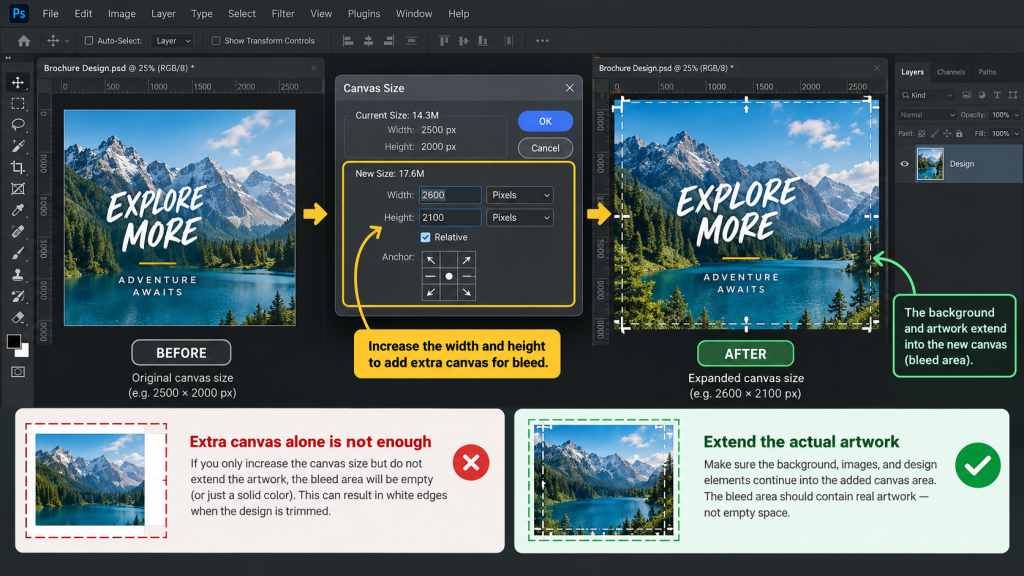
For example, if the printer requires an additional 0.125 inch on both left and right edges, the overall width increases by 0.25 inch. The final trimmed dimensions remain unchanged.
[IRONMARK SME VALIDATION REQUIRED. Verify the example and whether Photoshop files are acceptable for the relevant Ironmark production workflows.]
Step 3 Check the Printing Workflow
Photoshop provides commercial printing output options, including crop marks and a setting labeled Bleed in certain print workflows. These settings are not equivalent to InDesign’s document bleed workflow and do not create missing artwork by themselves.
For a production PDF, consult your printer about the preferred source application, file format and final output method rather than assuming Photoshop’s Print dialog is the required handoff.
Adobe explains how the canvas works in its Photoshop canvas size guide.
How to Check a PDF Before Sending It to Print
Whether you prepared the file in InDesign, Illustrator, Acrobat or Photoshop, inspect the final PDF rather than relying only on the settings in the source application.
- Confirm the intended finished trim size.
- Check that background images and colors reach the required bleed boundary.
- Confirm the file includes real artwork beyond the trim wherever the design needs it.
- Check that important content remains safely inside the finished cut.
- Verify the printer’s instructions about crop marks and look for duplicates.
- Confirm the PDF preset, page boxes, fonts, color settings and image quality required for the particular job.
- Save the final reviewed file under a clear filename before sending it to production.
For broader checks, review Ironmark’s prepress checklist and guide to preparing print ready files.
Common Bleed and Crop Mark Problems
The PDF Has Crop Marks but No Real Bleed
Printer marks show boundaries, not additional art. Return to the editable design and extend the relevant elements before exporting a new PDF.
The Document Has Bleed Settings but Shows White Edges
Check whether background artwork actually reaches the bleed guide. A numeric bleed setting does not extend the picture or background automatically.
The Marks Appear Twice
The PDF may already contain exported printer marks. Avoid layering a second set of marks in Acrobat without first checking the existing file.
The Trim Size or PDF Boxes Are Incorrect
Check the intended final size and the displayed TrimBox and BleedBox. Adjusting a box without understanding the actual artwork can create more problems than it solves.
The Photoshop Canvas Is Larger but the Image Is Not
Extra canvas space may be transparent or filled with a solid color. Inspect what will actually appear at the finished edges and revise the design if necessary.
[IRONMARK SME VALIDATION REQUIRED. Replace or supplement these general troubleshooting examples with confirmed Ironmark prepress observations, if available. Do not label them as mistakes Ironmark routinely encounters without evidence.]
Get Your Artwork Ready for Professional Printing
The best Adobe workflow depends on the file you have, the finished print product and your printer’s production requirements. Real bleed artwork, correct trim dimensions and appropriate PDF export settings matter more than the presence of extra printer marks.
Ironmark offers commercial printing and prepress support across design preparation, print production and finishing. If you are unsure whether your PDF is ready for production, consult the Ironmark team about the correct specifications for your project.