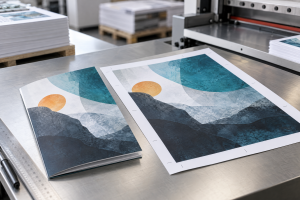
A design can look perfect on screen but still end up with thin white edges or text too close to the cut after printing. Understanding bleed and crop marks helps prevent these problems before your artwork reaches production.
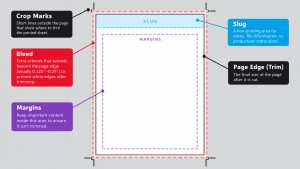
Bleed is extra artwork that extends beyond a printed piece’s final trim size. Crop marks are guides that show where the finished piece should be cut. Together with the trim line and safe area, they help designers prepare artwork for accurate professional printing.
Understanding Bleed, Crop Marks, Trim and Safe Area
Before preparing artwork for printing, it helps to understand four essential concepts.
Bleed is the extra image, color, or background extending beyond the finished edge. The excess artwork is removed during trimming.
Crop marks are small lines outside the finished piece that indicate where the material should be cut. They are also called trim marks.
Trim line is the boundary that defines the final dimensions of the printed piece after cutting.
Safe area is the space inside the trim line where important text, logos, and other essential design elements should remain.
These elements serve different purposes. Bleed protects artwork intended to reach the edge, crop marks identify the cutting position, and the safe area helps protect important content.
What Is Bleed in Printing?
Bleed in printing is the additional image or background that extends beyond the final dimensions of a printed piece. This extra artwork gives the printer room to trim the material without leaving unwanted white edges.
Imagine designing a brochure with a blue background that should reach every edge. If the background stops exactly at the finished page boundary, even a slight variation during trimming could reveal a narrow strip of unprinted paper. By extending the blue background beyond the trim line, the design continues past the intended cut. The excess artwork is removed during finishing, leaving the background extending cleanly to the edge.
Bleed is particularly relevant for designs containing full page photographs, background colors, edge to edge illustrations, decorative patterns, and graphics that reach the finished edges. Bleed is not a visible border. It is an extension of the artwork that normally disappears after trimming.
Some printing applications also use the term bleed marks for printer marks that indicate the extent of the bleed area. These are different from the bleed artwork itself and from crop marks, which identify the final trim.
For further technical clarification, Adobe provides guidance on print bleed.
Why Is Bleed Necessary in Printing?
Bleed helps accommodate small variations during the printing and trimming process.
Commercial printing frequently involves producing artwork on sheets larger than the final piece. The printed material is then cut to its intended dimensions. Even with precise equipment, small differences in cutting and material handling can occur.
Without bleed, those differences may expose an unwanted white edge where the printed background was supposed to continue. For example, if a photograph ends exactly at the trim line and the cut falls slightly outside that boundary, a thin strip of unprinted material could remain visible.
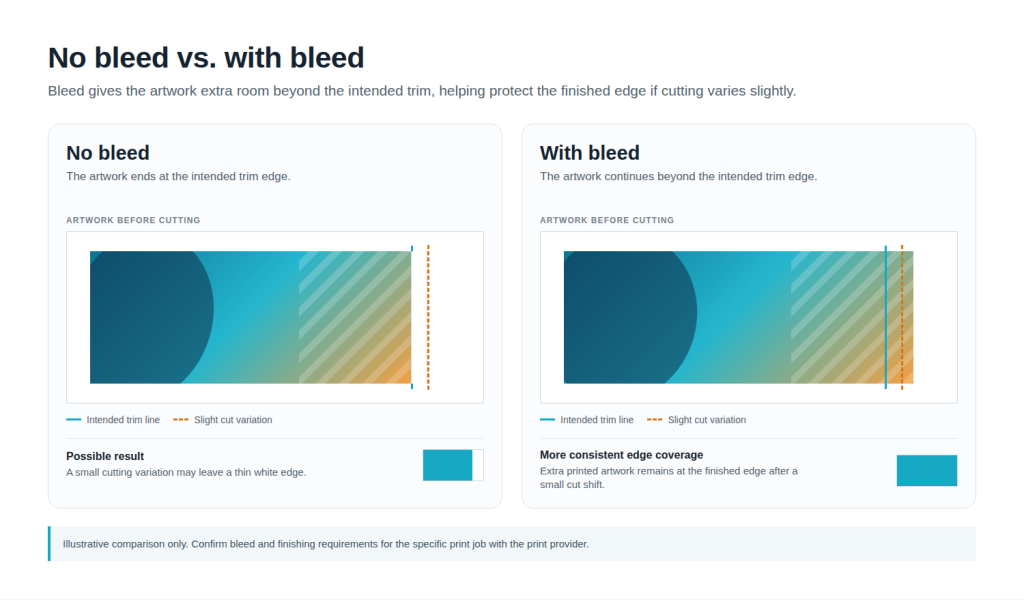
Extending the photograph into the bleed area provides additional printed artwork beyond the intended cut. Proper bleed preparation helps maintain continuous backgrounds, reduces the likelihood of white edges, and supports a clean finished appearance.
However, setting a bleed value in your design software is not enough by itself. The background or image must actually extend into the bleed area. An empty bleed area cannot protect against white edges.
How Much Bleed Should You Use?
For many common commercial printing applications, 0.125 inch, or 1/8 inch, on each side is a typical bleed allowance. However, bleed requirements vary depending on the print provider, product, materials, and finishing method. Always confirm the specifications for your particular project before preparing the final artwork.
[IRONMARK SME VALIDATION REQUIRED. Confirm whether Ironmark recommends 0.125 inch on each side for standard print products and identify any exceptions.]
Example of Bleed for a 5 by 7 Inch Flyer
Suppose you are designing a flyer with finished dimensions of 5 by 7 inches. If the printer requests 0.125 inch of bleed on every side, the measurements would be as follows.
Finished flyer dimensions are 5 by 7 inches. Bleed on each side is 0.125 inch. Total artwork extent including bleed is 5.25 by 7.25 inches.
The additional 0.25 inch in each overall dimension accounts for bleed on both opposite sides. The finished flyer remains 5 by 7 inches after trimming. This example describes the overall artwork extent including bleed. The exported PDF page dimensions may differ depending on its page boxes and printer mark settings.
When Might a Different Bleed Amount Be Required?
Certain products may require different bleed allowances due to their dimensions, materials, printing methods, or finishing requirements. Large format displays, packaging, and specialized printed products may use different specifications from standard brochures or business cards.
For these projects, request the appropriate artwork template or production requirements before finalizing the design.
[IRONMARK SME VALIDATION REQUIRED. Identify the products and workflows that require different bleed specifications.]
If you are preparing artwork for a new project, understanding what your printer needs for a quote can also help you confirm important production details before moving forward.
What Are Crop Marks in Printing?
Crop marks are thin lines placed outside a design’s finished area to indicate where the printed piece should be trimmed. They are also commonly called trim marks.
Crop marks typically appear near the corners of the artwork as short horizontal and vertical lines. Their positions identify the intended finished width and height.
For example, a brochure may be printed on a larger sheet before being trimmed to its final dimensions. Crop marks indicate the cutting boundaries so the finished piece can be produced at the intended size.
When properly positioned, these marks sit outside the finished design and are removed along with the surrounding excess material. Crop marks are different from bleed.
Bleed provides additional image or background beyond the intended cut, while crop marks identify where the intended cut belongs. A file can contain correctly positioned crop marks and still lack the extra artwork needed for edge to edge printing. Adobe also explains the distinction in its guidance on printer marks.
Bleed vs Crop Marks in Printing
The simplest distinction is that bleed is extra artwork, while crop marks are cutting guides.
| Aspect | Bleed | Crop marks |
| What it is | Extra artwork outside trim | Guides indicating cut location |
| Purpose | Reduces unprinted edges | Marks the intended finished size |
| Placement | Around the final trim area | Outside the finished piece |
| Can create artwork | Extends the existing artwork | No |
| Always requested | Depends on design and job | Depends on print provider |
Bleed is additional artwork beyond the finished edge, helping prevent unwanted white edges. Crop marks are lines identifying the intended cut. Bleed is trimmed away along with crop marks positioned outside the finished artwork.
Adding crop marks does not create bleed. A document may need additional artwork beyond the trim line even when the crop marks are already correct. Likewise, artwork can contain the proper bleed without requiring the designer to add visible crop marks manually. The appropriate file setup depends on the printer’s requirements.
Understanding the Relationship Between Bleed, Trim and Safe Area
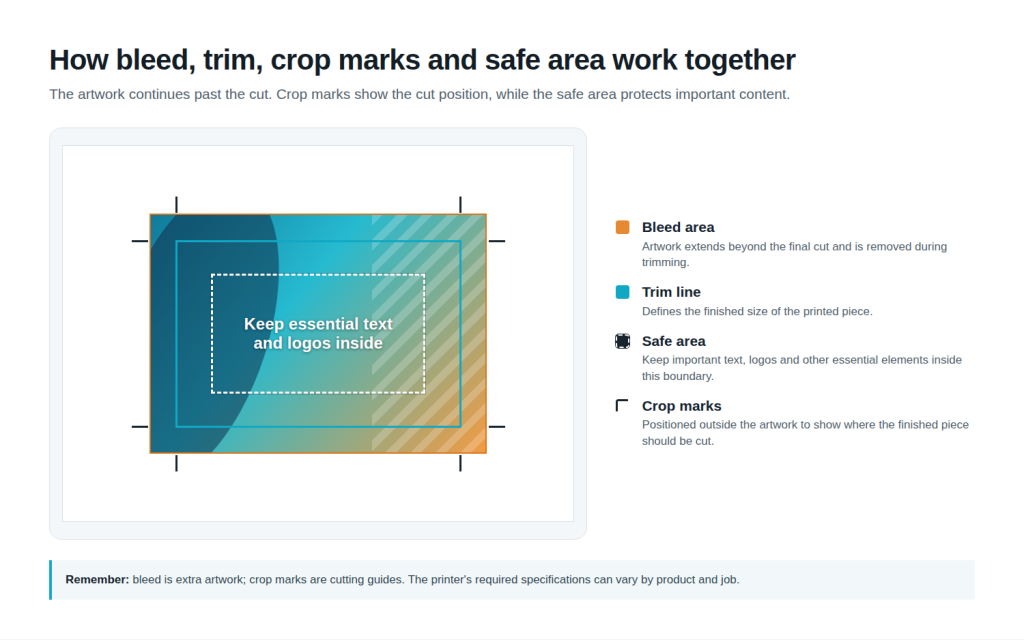
Bleed, trim, and safe area work together to protect different parts of a printed design. Think of a printed flyer as having three connected regions.
Bleed Area
The bleed area extends outside the finished trim boundary. Background images, colors, and patterns intended to reach the edge should continue into this area. The extra artwork is removed during finishing.
Trim Line
The trim line defines the final dimensions of the printed piece. For a flyer measuring 5 by 7 inches, the trim boundary identifies the finished 5 by 7 inch rectangle. Artwork outside that boundary may be removed when the flyer is cut. The trim line is a production boundary and is not necessarily a visible line printed on the final product.
Safe Area
The safe area is located inside the trim boundary. Important text, logos, QR codes, and other essential design elements should remain within this space to reduce the risk of being cut off.
The safe area serves a different purpose from bleed. Bleed extends artwork outward beyond the intended cut, while the safe area keeps important content inward from the cut. A common bleed allowance does not automatically establish the correct safe area for every print product.
[IRONMARK SME VALIDATION REQUIRED. Confirm the preferred safe area guidance and any product specific exceptions.]
Visual Explanation of Bleed, Trim, Safe Area and Crop Marks
A useful way to remember these concepts is to extend backgrounds outward into the bleed while keeping important content inward within the safe area.
Do All Print Projects Need Bleed?
No. Whether a print project requires bleed depends on the design and how the finished piece should appear. Bleed is generally needed when an image, background, color, or graphic must extend all the way to a trimmed edge.
For example, a full color flyer with a background reaching every edge will typically require bleed. A business card featuring an edge to edge photograph will also generally need additional artwork beyond the trim boundary.
However, a document with intentional white margins may not require bleed if no artwork is intended to extend to the edges. A white margin is not necessarily a printing error. It may be an intentional part of the design.
The key consideration is whether the artwork should continue to the finished edge. If it should, confirm the appropriate bleed requirements with your printer.
Do You Always Need Crop Marks?
Not necessarily. Some print providers request files with crop marks, while others prefer files that contain properly defined trim and bleed dimensions without additional marks.
The printer may generate the necessary production marks during its own prepress workflow. Unnecessary or incorrectly positioned crop marks can complicate file preparation, especially when they overlap artwork or conflict with the intended cutting boundaries.
Before exporting a file, confirm the finished trim dimensions, required bleed, and whether crop marks should be included.
Common Bleed and Crop Mark Mistakes to Avoid
Several artwork preparation issues can lead to unexpected printing results. Understanding these problems before submitting files can help reduce revisions and production delays.
Setting Bleed Without Extending the Artwork
A document may have the correct bleed settings while its background stops at the trim line. This creates an empty bleed area rather than a continuation of the design. Make sure every image, background, or graphic intended to reach the finished edge extends through the required bleed area.
Placing Important Content Too Close to the Trim
Text, logos, and other essential elements placed near the finished edge may be partially removed during cutting. Keep important design elements inside the recommended safe area.
Confusing Bleed Marks With Crop Marks
Bleed marks and crop marks identify different boundaries. Crop marks show where the finished piece should be cut, while bleed marks can indicate the extent of the bleed area in applicable output workflows. Confirm which marks are required before exporting the file.
Assuming Every Print Product Uses the Same Specifications
A bleed allowance suitable for one printing product may not be appropriate for another. Always follow the specifications for the actual print job rather than assuming every product uses 1/8 inch of bleed.
Exporting a PDF Without Checking the Artwork
A design may appear correct in its original software application but contain problems in the exported PDF. Missing bleed, incorrect dimensions, unsuitable image settings, or unwanted printer marks may affect the final file. Review the exported document before submission.
What If Your Artwork Does Not Have Enough Bleed?
If an image or background does not extend far enough beyond the trim, you may need to adjust the original design. Depending on the source material, this could involve repositioning an image, using a larger image, extending a simple background, or revising the layout.
Simply adding crop marks or increasing a document’s bleed setting will not create missing image detail. If the source artwork cannot safely be extended, consult your designer or print provider before submitting the file.
Should You Send a Print Ready PDF?
A properly prepared PDF is a widely used format for professional printing because it can preserve document layout, graphics, page dimensions, and font information. However, saving a file as a PDF does not automatically make it ready for production.
A PDF may still contain missing bleed, incorrect dimensions, low resolution images, font problems, unsuitable color settings, or other technical issues.
Before sending your PDF, verify that the finished dimensions are correct, all required background artwork extends into the bleed, and important content remains within the safe area. Also confirm that fonts and images display correctly and that the exported file meets the printer’s production requirements.
For more detailed guidance, learn how to prepare print ready files and review Ironmark’s prepress checklist.
How Do You Add Bleed and Crop Marks in Adobe?
Adobe applications provide different tools for preparing artwork for commercial printing. InDesign and Illustrator support document bleed settings and PDF output options, while Acrobat Pro provides tools for adjusting PDF page boxes and adding printer marks. These functions do not all perform the same task.
The general preparation principle is to define the finished size, confirm the required bleed, extend the artwork, and verify the exported file.
For detailed instructions covering Adobe Acrobat, InDesign, Illustrator, and Photoshop, follow Ironmark’s guide on how to add bleed in Adobe before printing. This guide explains the software workflow, while the current article focuses on understanding the printing concepts.
What to Check Before Sending Your Artwork to Print
Before submitting your artwork, complete these essential checks.
Confirm the final trim dimensions of your printed piece. Check the bleed requirements for the specific product. Extend all backgrounds and images intended to reach the finished edge. Keep important text, logos, and design elements within the safe area. Confirm whether crop marks or other printer marks are required. Export the file using the printer’s recommended format and settings. Review the exported PDF for missing artwork or incorrect dimensions. Check any additional product or finishing requirements.
For complex projects or unfamiliar printing specifications, request an artwork template or guidance from your print provider before finalizing the design.
Prepare Your Print Project with Confidence
Understanding bleed, crop marks, trim, and safe area helps you prepare artwork that is easier to review, produce, and finish accurately.
Ironmark supports commercial printing through design, prepress, print production, finishing, and related services. With more than seven decades of printing experience, Ironmark helps businesses manage production requirements and bring their printed materials to life.
Planning a new printing project or need assistance preparing your artwork? Explore Ironmark commercial printing services to learn how our team can support your project from preparation through production.